What Is Google reCAPTCHA, How Does It Work, and How to Set It Up on a Website

Spam submissions, automated registrations, and bot-generated orders can make website management much more difficult and quickly overwhelm your system. Google reCAPTCHA helps distinguish legitimate visitors from automated activity, without necessarily requiring users to complete a traditional CAPTCHA. In this article, we’ll explain how it works, what versions are available, and how to set it up on different types of websites.
Effective Form Protection Against Spam
We’ll set up reCAPTCHA and add additional layers of protection for comprehensive, long-term security for your website.
What Is Google reCAPTCHA?
Google reCAPTCHA is a system that protects websites from automated spam and other unwanted bot activity. It is most commonly used for contact forms, registrations, login pages, and similar areas where bots can automatically flood your website with spam or fraudulent activity. reCAPTCHA’s job is to assess whether a request comes from a real user or represents potentially risky automated activity.
Most people associate reCAPTCHA with the familiar “I’m not a robot” challenge, but that hasn’t been the only option for several years. Google also supports solutions that do not interrupt visitors and instead evaluate requests in the background, without requiring any manual verification.
Traditional names such as reCAPTCHA v2 and reCAPTCHA v3 are still widely used, but Google Cloud now generally refers to the different options based on how verification works, using terms such as checkbox or score-based.
During 2026, Google incorporated reCAPTCHA into the broader Google Cloud Fraud Defense platform, which also addresses other forms of automated abuse and fraudulent activity. For the average website owner, however, we can continue using the familiar name Google reCAPTCHA — old habits are hard to break. 🙂
How Does reCAPTCHA Work and Protect a Website From Spam?
In practice, the principle behind how reCAPTCHA works is fairly simple. When a visitor performs an action, such as submitting a contact form, reCAPTCHA evaluates signals associated with that request and generates a token. The website then sends that token for server-side verification and, based on the result, can accept the request, block it, or handle it more cautiously.
With modern types of reCAPTCHA verification, this entire process takes place in the background, without requiring visitors to click on images or confirm that they are not a robot.
Modern reCAPTCHA works like this:
- Legitimate user – the system determines that the visitor is likely a real person, and the user notices nothing.
- Bot – the system determines that the request is likely automated activity and includes this information in the token mentioned above. When the form submission is processed on the server—for example, when sending a confirmation email or writing data to a database—the server knows that the request came from a bot and can simply reject it.
Server-side verification is extremely important in this process. If it is not implemented correctly, reCAPTCHA becomes ineffective, and spam emails may continue arriving just as they did before you added the protection.
We consider reCAPTCHA an important anti-spam tool, but there are several ways to protect a website, and it is good practice to use more than one layer of protection. You can learn more in our separate article about comprehensive protection against form spam and malicious bots.
What Versions of Google reCAPTCHA Are Available?
When setting up reCAPTCHA, you may come across two different naming systems. Older tutorials, WordPress plugins, and other CMS platforms commonly use terms such as reCAPTCHA v2, Invisible reCAPTCHA v2, and reCAPTCHA v3. In the current Google Cloud interface, versions are instead named according to how they work, such as Website – score or Website – checkbox.
reCAPTCHA v2 / Checkbox
This is the classic reCAPTCHA associated with the “I’m not a robot” checkbox. Users have to click it and may also be asked to complete an additional CAPTCHA challenge, such as selecting certain objects in a set of images—for example, identifying all images that contain a bus. Google now refers to this type as Website – checkbox.
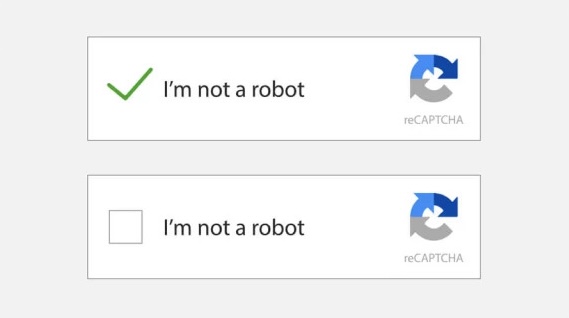
reCAPTCHA checkbox after and before the user verification.
Invisible reCAPTCHA v2
Invisible reCAPTCHA v2 is an older variant that does not require users to click the traditional checkbox. However, depending on the assessed risk, they may still be asked to complete a CAPTCHA challenge when necessary. It is no longer possible to create new Invisible v2 API keys in Google Cloud Console, and Google now directs new implementations toward its current protection options.
Note
If you are currently using Invisible reCAPTCHA v2, it will not stop working anytime soon, although we definitely recommend migrating to a newer option. However, if you wanted to implement this type of protection as a new solution today, that is no longer possible.

An example of a classic reCAPTCHA challenge.
reCAPTCHA v3 / Score-Based Protection
reCAPTCHA v3 works without displaying a traditional challenge to the user. Instead, it evaluates the interaction and assigns it a score indicating how likely it is to be automated.
The website can then use that result to decide whether to process the request normally, subject it to additional verification, or reject it. In Google Cloud’s current terminology, this approach corresponds to Website – score, which Google recommends as the preferred option for web implementations.
Newer Terminology and Changes
For websites, Google Cloud now mainly distinguishes between score-based, checkbox, and policy-based challenge options. The last of these—policy-based—is a hybrid approach that displays a CAPTCHA challenge when a predefined risk threshold is reached.
This is why you may encounter different terminology in the current documentation than in your WordPress plugin or an older tutorial. However, this does not mean that the terms v2 and v3 disappeared overnight. Google still uses them, but now treats them as legacy terminology.
Which Version of reCAPTCHA Should You Choose?
For a new reCAPTCHA implementation, we would generally start with the score-based variant, which follows the same principle as the familiar reCAPTCHA v3. Google currently lists it as the recommended option for websites.
Its main advantage is that it does not interrupt visitors with a challenge or checkbox. Instead, reCAPTCHA evaluates the request in the background and returns a score that the website can use to choose an appropriate response—for example, allowing the request, rejecting or stopping it, or subjecting it to additional verification.
The situation is slightly different with WordPress plugins and other platforms. You cannot always choose any reCAPTCHA type you want, so you should first check which version is officially supported by the specific plugin or platform you are using. For example, if a form plugin supports only reCAPTCHA v2, you will not be able to use a different version with that plugin.
In Short
For a new implementation or a custom solution, start with the score-based variant. If you are tied to a specific plugin or platform, use the reCAPTCHA type that the solution officially supports.
Where and How to Get Google reCAPTCHA Keys
The next step is to create a reCAPTCHA key. This connects your website to the reCAPTCHA service and allows it to evaluate visitor requests. In some tutorials and integrations, you may also come across the term site key.
The easiest way to create one is through the Google Cloud Fraud Defense Admin Console, or alternatively through Google Cloud Console. When creating the key, you enter a name that will help you identify it, select the type of protection, such as Score based (v3) or Challenge (v2), and add your website’s domain. You then submit the configuration, and Google generates the key that will be used for the integration. For more detailed instructions, you can follow Google’s official guide.
A good practice is to create a separate key for each website and to keep production and testing environments separate. This prevents test traffic from being mixed with the real-world data reCAPTCHA uses to assess risk.
With WordPress plugins, you may still encounter the older terms site key and secret key. The site key corresponds to the reCAPTCHA key ID, while some older or third-party integrations may also require a so-called legacy secret key. Where these keys need to be entered, and which type you should use, depends on the specific plugin or website technology.
Tip
Create your reCAPTCHA key only after you know which type of protection you want to use. This will help you avoid situations where a plugin does not accept your key or your developer tells you that a different type is required.
How to Set Up reCAPTCHA Based on the Type of Website
The implementation process depends on the technology your website uses, but the general steps are similar:
- Create a reCAPTCHA key
- Associate it with your domain
- Integrate it into the website
- Implement server-side verification
- Test the implementation
When creating the key, you specify the type of protection and the domain where it will be used. However, the key alone does not protect your website. reCAPTCHA must also be properly integrated into the form and into the entire server-side processing flow.
WordPress With a Form Plugin
If you use WordPress, first determine which tool or plugin was used to create the form. It may be Contact Form 7, WPForms, Elementor Forms, Gravity Forms, or another plugin. Then check its current documentation to see whether it supports Google reCAPTCHA and which type of key it requires.
If the plugin supports reCAPTCHA—which is very likely—you usually do not need to write any code. You simply create the appropriate reCAPTCHA keys and enter them in the plugin settings. The exact process varies from plugin to plugin, however, so there is no single universal setup guide for all of WordPress. If you cannot find the relevant settings in your plugin, contact its support team or refer to the plugin’s official documentation.
Simple Checklist
- Find out which type of reCAPTCHA the plugin supports
- Create the required keys
- Enter them in the plugin settings
WordPress With a Custom-Built Form
If a developer created the form specifically for your website, simply adding a reCAPTCHA key is not enough. In fact, there may not even be a settings page where you can enter the key.
The form needs to be extended so that the integration obtains a token when the user performs an action, sends that token together with the form data, and then verifies it on the server. Based on the result, the website can decide whether to accept or reject the request. Contact your developer—they will most likely know what needs to be done.
If you do not have a developer, contact us and we can help you implement reCAPTCHA correctly, review your existing implementation, or improve your website’s broader security and anti-spam protection.
Shopify
Shopify works differently. The platform uses hCaptcha on its native forms, where it is enabled by default to protect areas such as contact forms, comments, logins, and account creation.
For a typical Shopify store, there is therefore usually no need to add Google reCAPTCHA manually. Shopify even warns that an additional CAPTCHA added through custom code or an app may conflict with hCaptcha.
Exceptions may include custom forms, apps, or solutions that operate outside the standard Shopify environment. In those cases, the appropriate protection method should be evaluated based on the specific implementation.
Wix
Wix also handles form protection largely within the platform itself. New Wix Forms include built-in spam filters and can use invisible reCAPTCHA, which evaluates visitor behavior and displays a challenge only when suspicious activity is detected.
The level of protection is configured directly in the platform’s administration interface, so users typically do not need to create their own API keys or handle server-side verification.
Custom Website With Custom Code
For a custom-built website, the developer must handle the entire integration process, including:
- creating an appropriate reCAPTCHA key and assigning it to the domain,
- integrating reCAPTCHA into the frontend—the part of the website that runs in the browser,
- obtaining a token when the form is submitted,
- sending the token to the server together with the form data,
- verifying the result on the server, and
- accepting, restricting, or rejecting the request based on that result.
Frontend integration and backend evaluation are two separate parts of the deployment process.
For a fully custom solution—whether it uses a custom CMS or no CMS at all—we recommend leaving the implementation to a developer. If you do not currently have a development partner, we can help with reCAPTCHA as well as more comprehensive website security.
How to Verify That reCAPTCHA Is Working Properly
After setting up reCAPTCHA, first test the form as a regular visitor. Submit several legitimate messages, registrations, or orders and make sure the form works without any issues.
Next, check the reCAPTCHA or Google Cloud Fraud Defense admin interface and verify that the system is receiving requests from your website. If you are using score-based protection, also monitor the assigned scores and gradually adjust the thresholds for accepting, further reviewing, or blocking requests based on real traffic. Google recommends setting thresholds based on real-world data, as results shortly after deployment or in a test environment may differ.
If you are using a WordPress plugin, review its settings as well as any available logs or error messages it provides.
Important
The presence of a reCAPTCHA badge or checkbox alone does not prove that the protection is working correctly. The verification process involves several components, so you need to make sure that every step has been implemented properly.
Conclusion
The correct way to implement Google reCAPTCHA depends on the technology your website uses. Start by identifying how your form was built and whether your CMS or platform already includes built-in protection.
If you have a custom-built form or website, or if you are unsure whether reCAPTCHA has been configured and verified correctly, contact us and we’ll be happy to help. If you want to take a more comprehensive approach to protecting your forms, see our article covering additional ways to protect your website from form spam and malicious bots.
Frequently Asked Questions About Google reCAPTCHA
Google reCAPTCHA is free up to a certain volume of requests. Larger websites may eventually run into usage limits and paid pricing. In practice, a typical business website or e-commerce store is unlikely to reach those limits.
Yes. We recommend implementing anti-spam protection on every publicly accessible form. Forms inside your website’s administration area or CMS generally do not need to be protected with reCAPTCHA.
Technically, you can assign multiple domains to a single key, but it is considered good practice to create a separate key for each website.
This keeps things more organized and makes it easier to evaluate traffic and troubleshoot potential issues.
The site key is used to connect reCAPTCHA to your website and may be part of the frontend integration running in the browser.
Older integrations and some third-party integrations, such as plugins, may also use a secret key. This is used for server-side verification and should never be publicly exposed.
Which credentials you need depends on the specific integration or plugin you are using.
For a new implementation, a score-based solution based on reCAPTCHA v3 is generally a good starting point because it typically does not interrupt users and performs verification in the background without requiring any action from them.
With WordPress plugins or ready-made platforms, however, you need to use the version officially supported by that solution.
If you are not tied to a specific plugin or platform, we definitely recommend implementing the newer type of protection—reCAPTCHA v3, or more precisely, a score-based solution.
No system is completely error-free. With score-based protection, it is therefore important not to set overly strict thresholds without real-world data. It is better to monitor the results first and then adjust the settings based on actual website traffic.
First, verify that reCAPTCHA has been implemented correctly and that your website is actually checking its result.
If the protection is working properly but spam still gets through, it may be useful to combine it with additional methods, such as a honeypot, rate limiting, and similar techniques.
No. A badge or checkbox only shows that a certain part of reCAPTCHA has loaded on the page. The protection works correctly only when the website also verifies the resulting token or assessment and uses that result to decide how the request should be handled.
Often, no—especially if you are using a WordPress plugin with built-in reCAPTCHA integration. In most cases, you simply need to create the correct type of key and enter it in the plugin settings.
For a custom-built form or website, however, both the frontend and server-side parts of the integration need to be implemented manually, so developer involvement is usually required.
In most cases, no. Shopify uses its own protection through hCaptcha, while Wix includes anti-spam protection directly within its platform.
Additional integration may make sense when you customize the platform beyond its standard forms, where you may need to implement your own protection.
Yes. A single properly configured reCAPTCHA key can—and generally should—be used across multiple forms on the same website.
Yes. If the implementation is correct, everything will usually work properly from the start and reCAPTCHA will require very little ongoing attention.
Regular checks are most useful for websites with larger or more varied traffic, where it can be helpful to review the settings occasionally and adjust them when necessary.